Learning Objectives
After completing this lesson, you'll be able to:
- Use an AI connector to analyze all MCP tools on a server.
- Format MCP tool input using AI.
- Dynamically select and call an MCP tool with an AI connector.
In this lesson, you will:
- Optional: Watch a demonstration video (if you have not attended the live training).
- Scroll down to read the activity instructions below and follow the steps in your lab.
- Complete the quiz at the end of this lesson.
- Click 'Next' to mark the lesson complete.
Resources
- FME and MCP Strigo training lab with Weather MCP server
- If you're taking a live, online training course, you will have access to the lab within the live event. Please do not request an on-demand lab unless you are working on the course materials outside of the live, online course time.
- If you're taking the course on-demand, please request an MCP and FME on-demand lab to work through the exercises.
- Starting workspace | C:\FMEData\Workspaces\MCPandFME\DynamicWeatherMCPCaller-start.fmw
- Complete workspace | C:\FMEData\Workspaces\MCPandFME\DynamicWeatherMCPCaller-complete.fmw
Dynamic Tool Selection with AI
MCP tool definitions intentionally give AI models readable, consistent information. Each tool has a name, natural language description, and a structured input schema, all of which an AI needs to understand what a tool does and how to use it. Instead of hardcoding which tool to call, your workspace can let an AI model decide at runtime using user input data and a list of available MCP tools.
First, an MCPCaller uses List Tools to retrieve the full set of tools available on an MCP server. An AI connector takes the tool list and any other data as input, evaluates the data and tool list to select the most appropriate tool to call, then outputs the selected tool and any structured input for the MCP tool call. Next, a second MCPCaller uses Call Tool to execute the right tool, passing in the inputs from the AI output. The second MCPCaller returns a structured output that the rest of the workspace can continue processing.
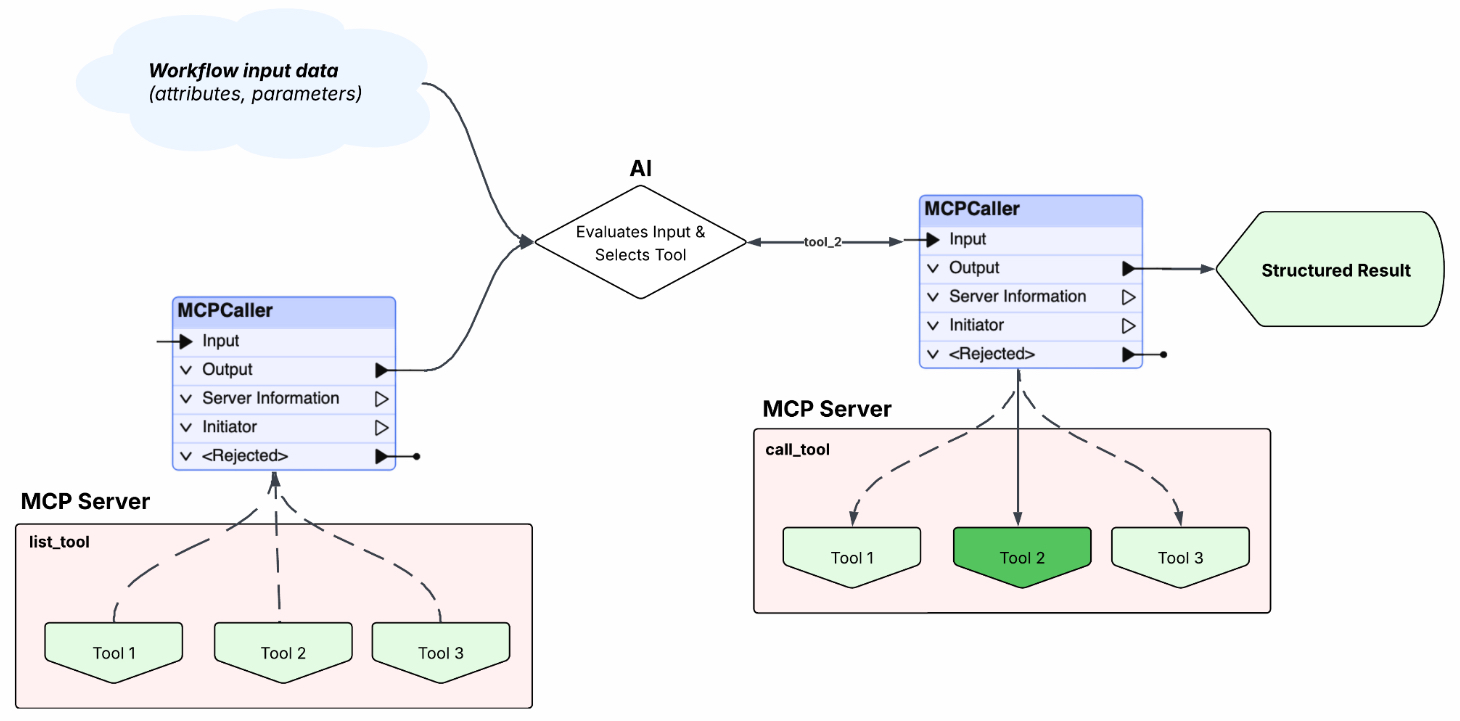
This approach means the workspace doesn't need an MCPCaller for each MCP tool, and you don't need to update it each time a new tool is added to the MCP server. AI enhances the workflow by dynamically discovering and evaluating tools, making it adaptable as the MCP server evolves.
Exercise

This exercise continues where the FME as an MCP Client exercise left off. You should complete the previous exercise before continuing with this one.

Frank has already used FME's MCPCaller to connect to an MCP server, list its available tools, and call a tool. However, instead of hardcoding tool calls into an MCPCaller, which requires multiple MCPCallers, he will use AI to analyze a user prompt and dynamically select and call an MCP tool in his workspace. Eventually, Frank can integrate this workspace with his future utility data MCP server to provide real-time weather metrics alongside some utility data workflows.
In this exercise, you will:
- Use an OpenAIConnector to analyze a list of MCP tools and select the most appropriate one based on user input.
- Use AI to format tool input dynamically for different MCP tools.
- Call an MCP tool based on AI output and tool selection.
1) Open Starting Workspace
- Continue with your workspace in FME Workbench 2026.2 or newer.
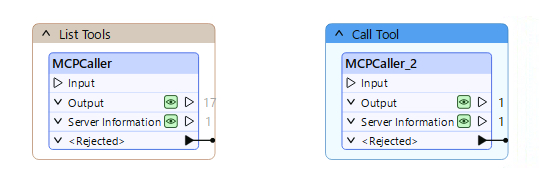
- It already contains the two MCPCallers you built in the previous lesson: one to List Tools, and one to Call Tool.
- If you do not have your workspace from the previous exercise, you can open the starting workspace (C:\FMEData\Workspaces\MCPandFME\DynamicWeatherMCPCaller-start.fmw).
2) Create User Parameter
The easiest method to take user input to control how the workspace runs is with user parameters.
- In the Navigator, right-click User Parameters and select Manage User Parameters.
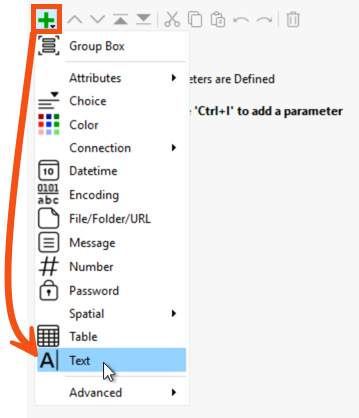
- Click the green + icon to add a new Text parameter.
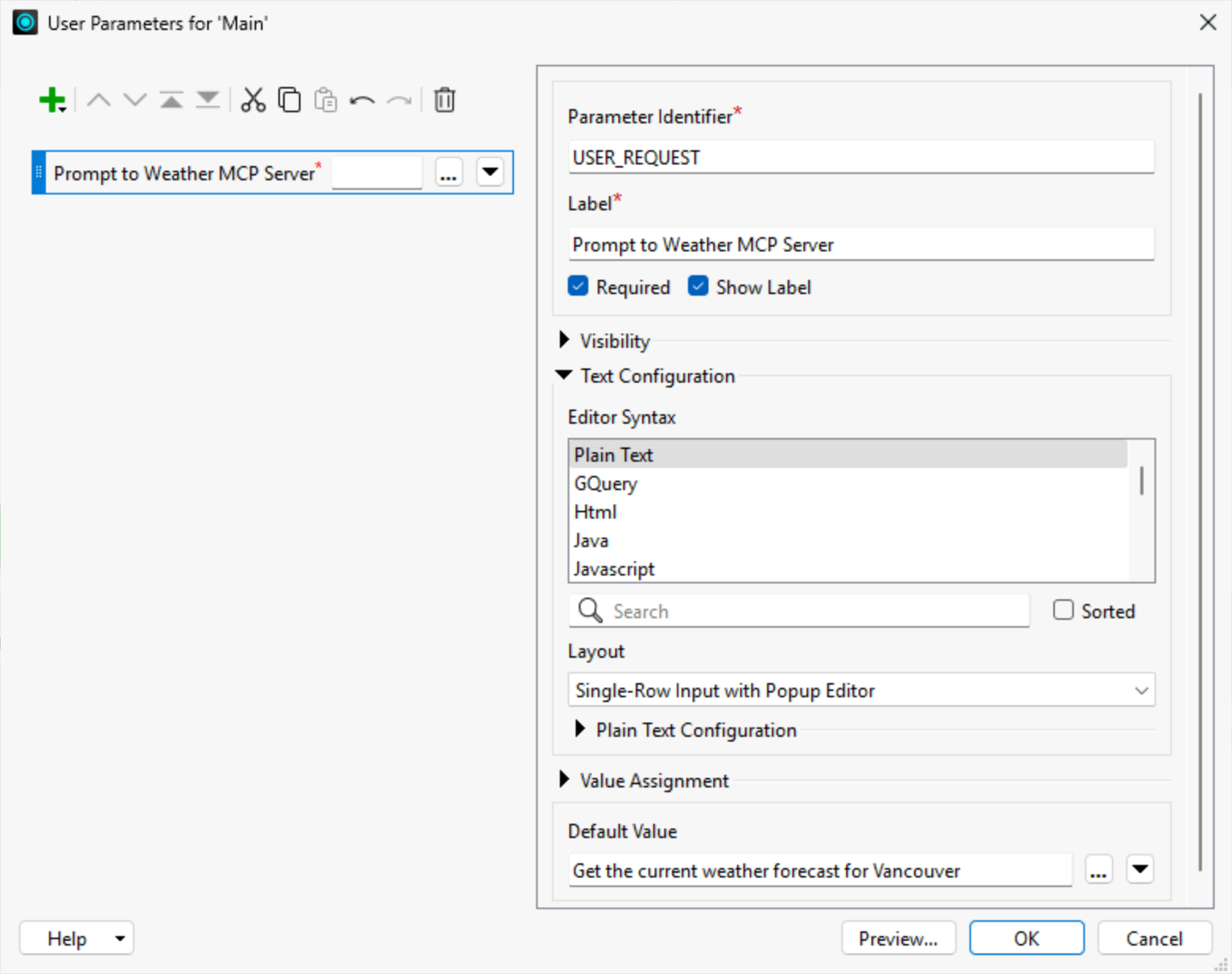
- Set the Parameter Identifier to USER_REQUEST and the Label to Prompt to Weather MCP Server.
- Use the Layout drop-down to select Single-Row Input with Popup Editor.
- Optionally, provide a default value like:
Get the current weather forecast for Vancouver
- Click OK to close the window.
3) Edit the List Tools MCPCaller
For the dynamic tool selection workflow, you want the List Tools MCPCaller to return only one record with information about all the tools. With individual records for each tool, a downstream AI connector can only analyze one tool at a time.
- Open the List Tools MCPCaller parameters.
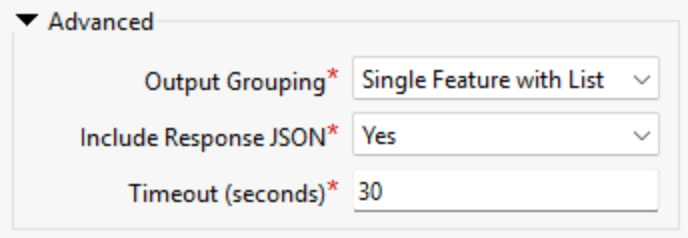
- Expand the Advanced section, set the Output Grouping to Single Feature with List, and the Include Response JSON to Yes.
- Click OK.
- The transformer's caches will become stale and change color from green to yellow.
4) Add an AttributeCreator
- Add an AttributeCreator and connect it to the List Tools MCPCaller Output port.
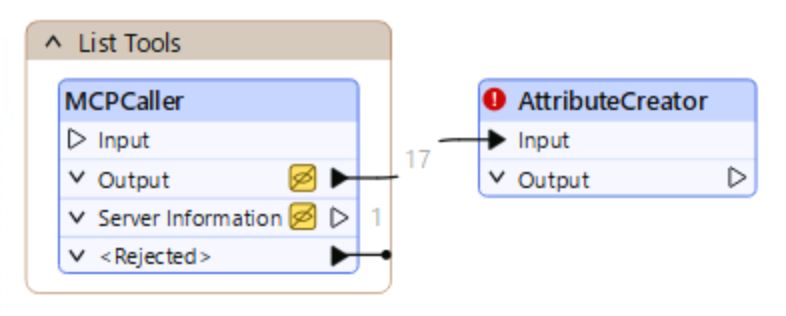
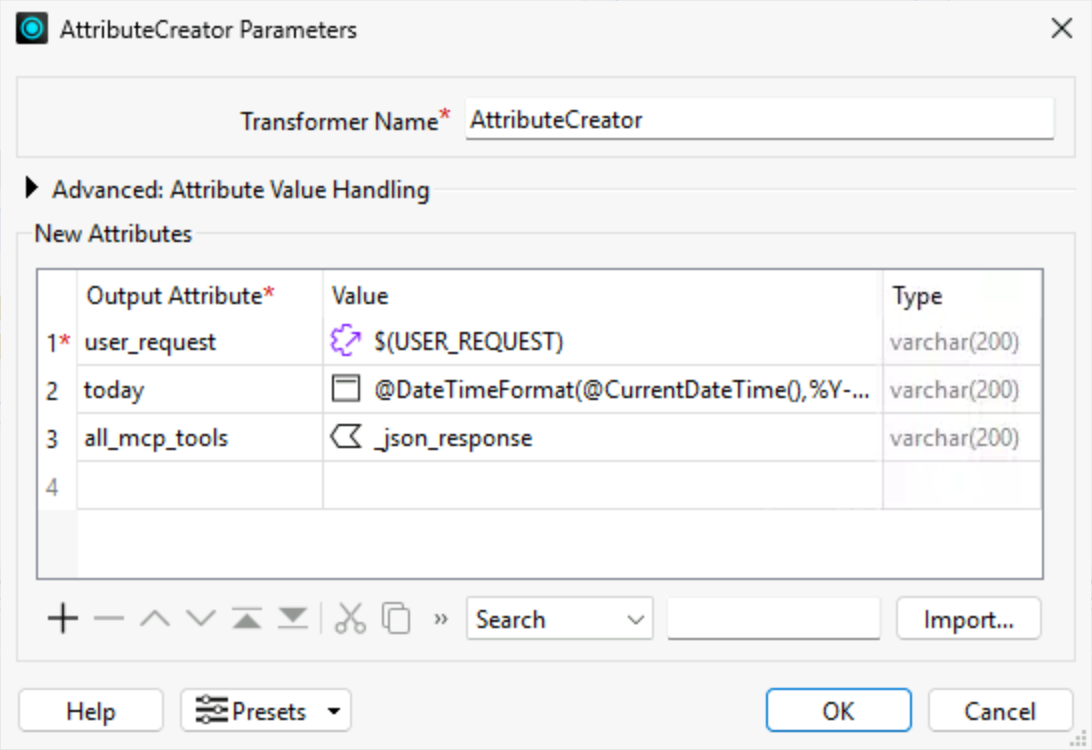
- Open its parameters and configure attributes for the user's request, today's date, and the list of tools returned by the MCP server.
- In the first row's Output Attribute column, enter user_request. For Value, use the drop-down options to select User Parameter, then choose USER_REQUEST.
- For the second row, name the Output Attribute today. For Value, use the Text Editor from the drop-down options to enter
@DateTimeFormat(@CurrentDateTime(),%Y-%m-%d).
- In the third row, name the attribute all_mcp_tools, and link the Value to the _json_response attribute, found under Attributes in the drop-down options.
- Click OK.
5) Run and Save
- Run the workspace to the AttributeCreator, including the List Tools MCPCaller.
- FME will prompt you for the input user request parameter. Leave it as the default. Click Run.
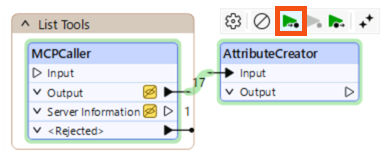
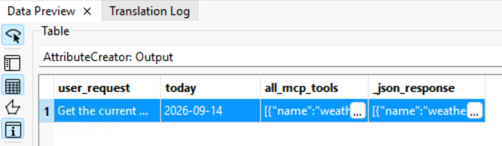
- Inspect the AttributeCreator's output.
- Notice FME populates the three attributes with their referenced values.
- Save your in-progress workspace. You can save your workspace to C://FMEData/Workspaces/MCPandFME.
6) Add and Configure OpenAIConnector
After the AttributeCreator, use an OpenAIConnector to have an AI model analyze the available MCP tools and select the best one for the user's input request.
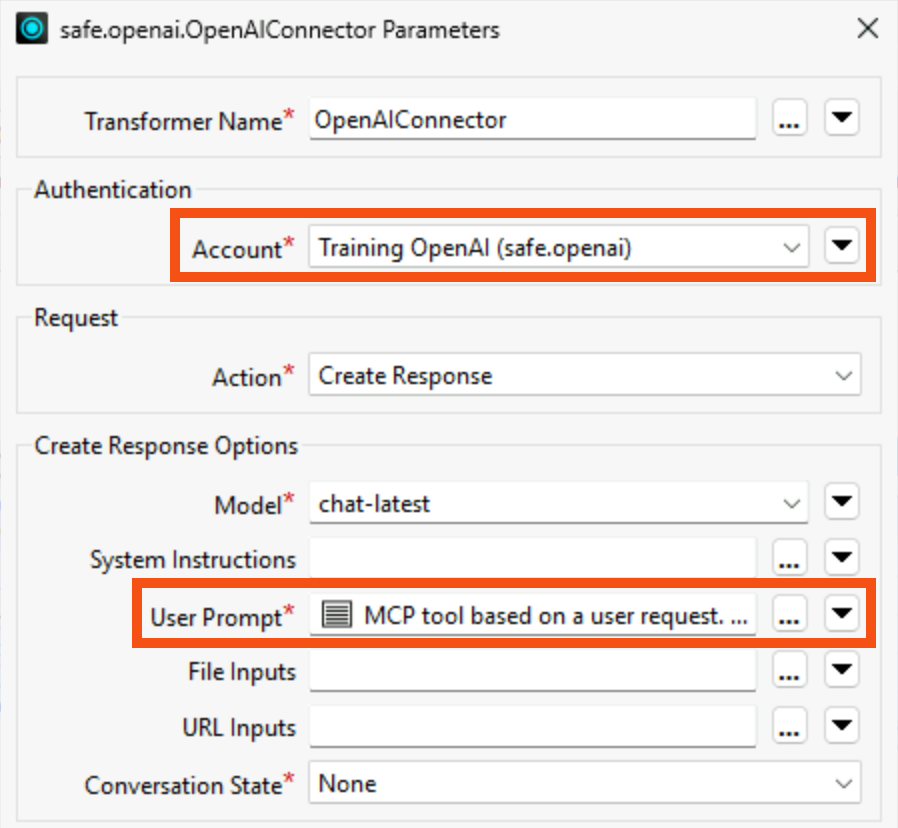
- Add an OpenAIConnector after the AttributeCreator. Open its parameters.
- For the account, select the Training OpenAI (safe.openai) web connection.
- Leave the Action set as Create Response.
- For the Model, leave it set to chat-latest.
- For User Prompt, open the Text Editor and enter the following prompt.
- It references the user_request, today, and all_mcp_tools attributes and instructs the model to analyze the user request and select the tool.
You are selecting a weather MCP tool based on a user request.

Available tools, including descriptions and input schemas:
@Value(all_mcp_tools)

User request:
@Value(user_request)

Your task:
Select the most appropriate weather tool and construct the tool_input that matches the selected tool's input schema exactly.

Rules:
- You MUST select tool_name exactly from the provided tool list.
- You MUST provide a tool_input that matches the input schema of the selected tool.
- Do not rename tools or invent new ones.
- Vancouver coordinates are latitude: 49.2827, longitude: -123.1207, timezone: "America/Vancouver".
- Use these coordinates for any location-based tool unless the user specifies a different location.
- If you do not know the geographic coordinates from the place name from the user request, estimate the coordinates from your knowledge to format the tool input.
- For weather_archive, today's date is @Value(today) — use a reasonable past date range.
- Do not use the geocoding tool.


Schema rules:
- tool_input must strictly follow the input schema of the selected tool.
- Preserve object structure and nesting exactly.
- Include all required fields.
- Do not add fields not defined in the schema.
Copying and Pasting in Strigo Labs
This course requires a lot of copying and pasting to avoid typing out JSON and descriptions. To copy and paste content into your Strigo lab:
- Copy the content from the FME Academy.
- Paste the content into the Strigo lab's clipboard.
- In the lab's virtual machine, paste (Ctrl + V) the content in the desired location.
If you're having trouble pasting into the Strigo lab, log into the FME Academy in a browser in the lab and copy (Ctrl + C) and paste (Ctrl + V) directly within the lab.
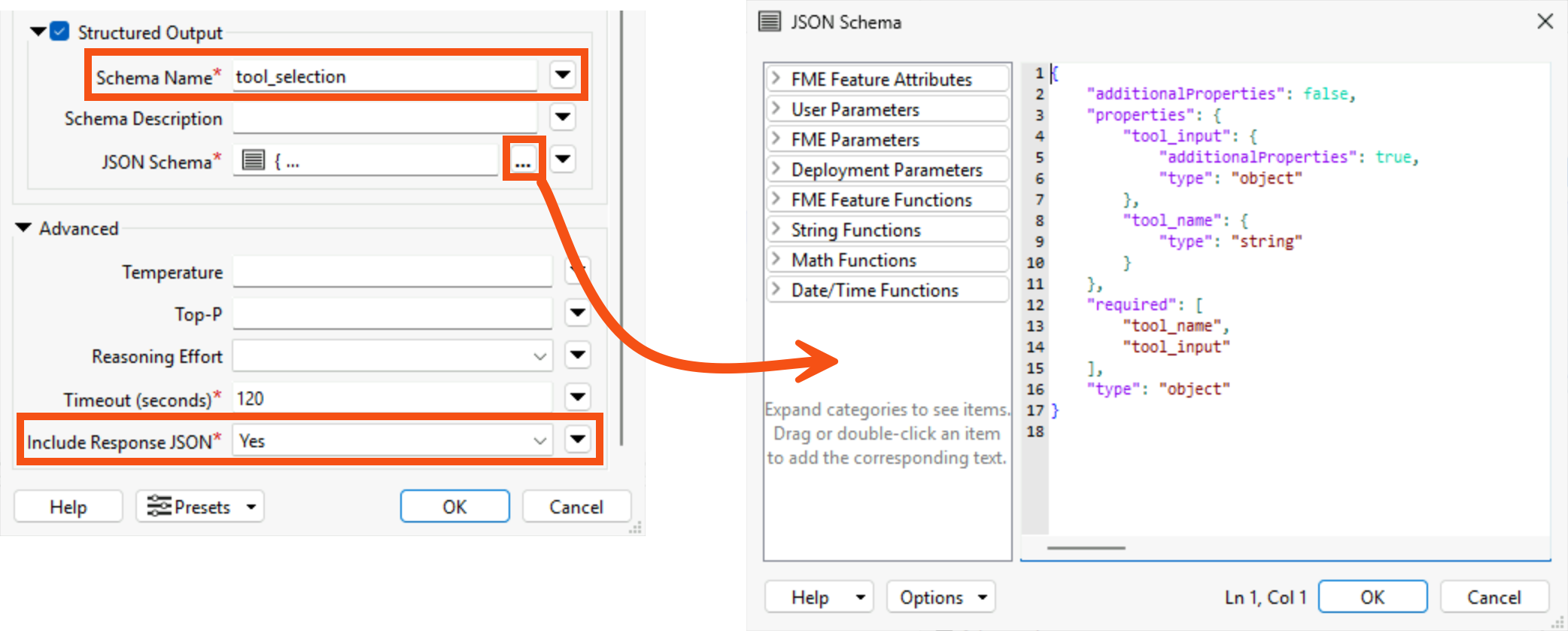
- Enable the Structured Output option.
- Set the Schema Name to tool_selection.
- For JSON Schema, paste the following JSON into the editor.
{
  "type": "object",
  "properties": {
    "tool_name": {
      "type": "string"
    },
    "tool_input": {
      "type": "object",
      "additionalProperties": true
    }
  },
  "required": ["tool_name", "tool_input"],
  "additionalProperties": false
}
- Under Advanced, make sure Include Response JSON is set to Yes.
- Click OK.
- Optional: Run the OpenAIConnector and inspect the data cache in Data Preview.
- Optional: Save your workspace.
7) Add a JSONFlattener
To send output from the OpenAIConnector as attributes to the Call Tool MCPCaller, you need to parse the output JSON into attributes.
- Add a JSONFlattener and connect it to the OpenAIConnector Output port. Open its parameters.
- Leave the Input Source as JSON Document and set it to _output_text.
- Change Recursively Flatten Objects/Arrays to No.
- Click the ellipses for Attributes to Expose and add tool_name and tool_input as the attributes.
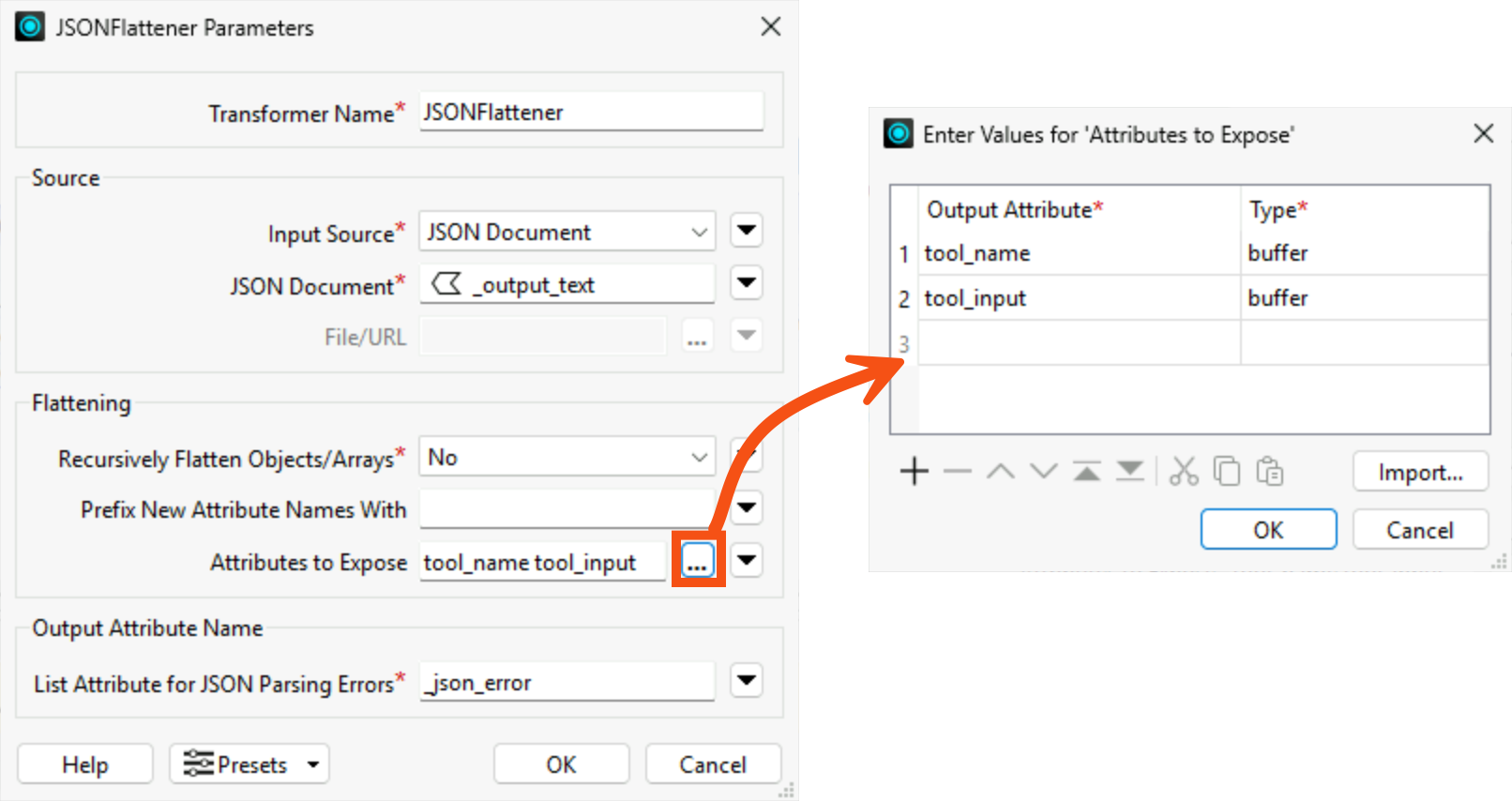
- Click OK twice to close the JSONFlattener parameters.
- Optional: Run to the JSONFlattener and inspect the exposed attributes in Data Preview. In the next exercise, the MCPCaller will take these exposed attributes as input.
- Optional: Save your workspace.
8) Edit the Call Tool MCPCaller
Now, reference the tool_name and tool_input attributes with output from the OpenAIConnector to the MCPCaller that calls the MCP tools.
- Move the Call Tool MCPCaller and connect its Input to the JSONFlattener's Output port.
- Open the MCPCaller's parameters.

- Replace the Tool Name with the tool_name attribute.
- Use the drop-down to select the tool_name attribute value.
- You will receive an error stating "Error extracting input schema: Can not parse the given JSON." Click OK. You receive this because you no longer hardcode the tool into the transformer, and the MCPCaller can't read the input schema in advance.
- The Input Schema will now be blank, as the MCPCaller doesn't know which tool it will be calling.
- Under Tool Input, set the JSON Text to the tool_input attribute.
- Again, use the drop-down options and select the tool_input attribute value.
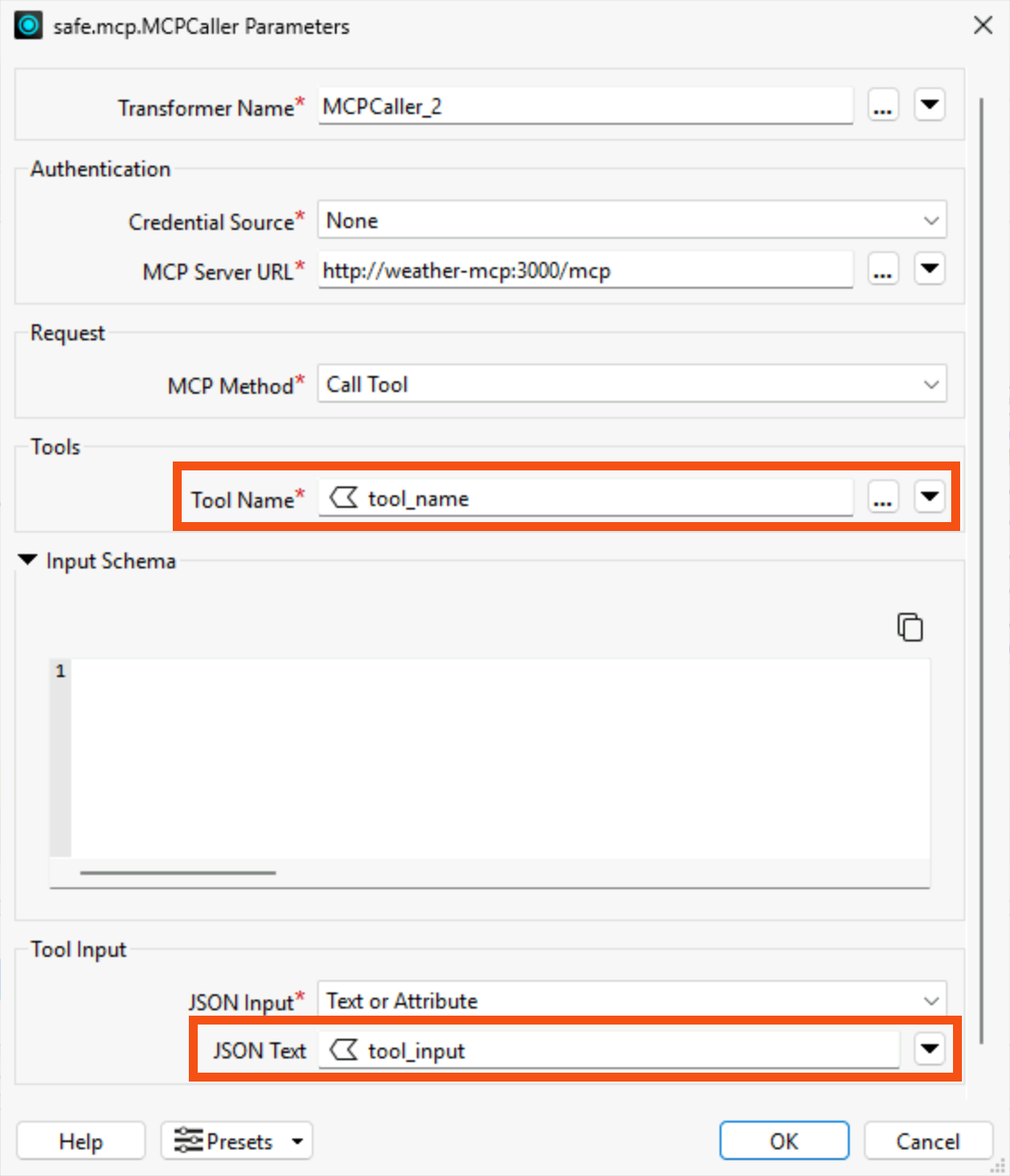
- Click OK to close the window.
9) Add a JSONFragmenter
The MCPCaller will return structured JSON containing the MCP tool's response. To extract specific values into attributes, you need to parse the JSON.
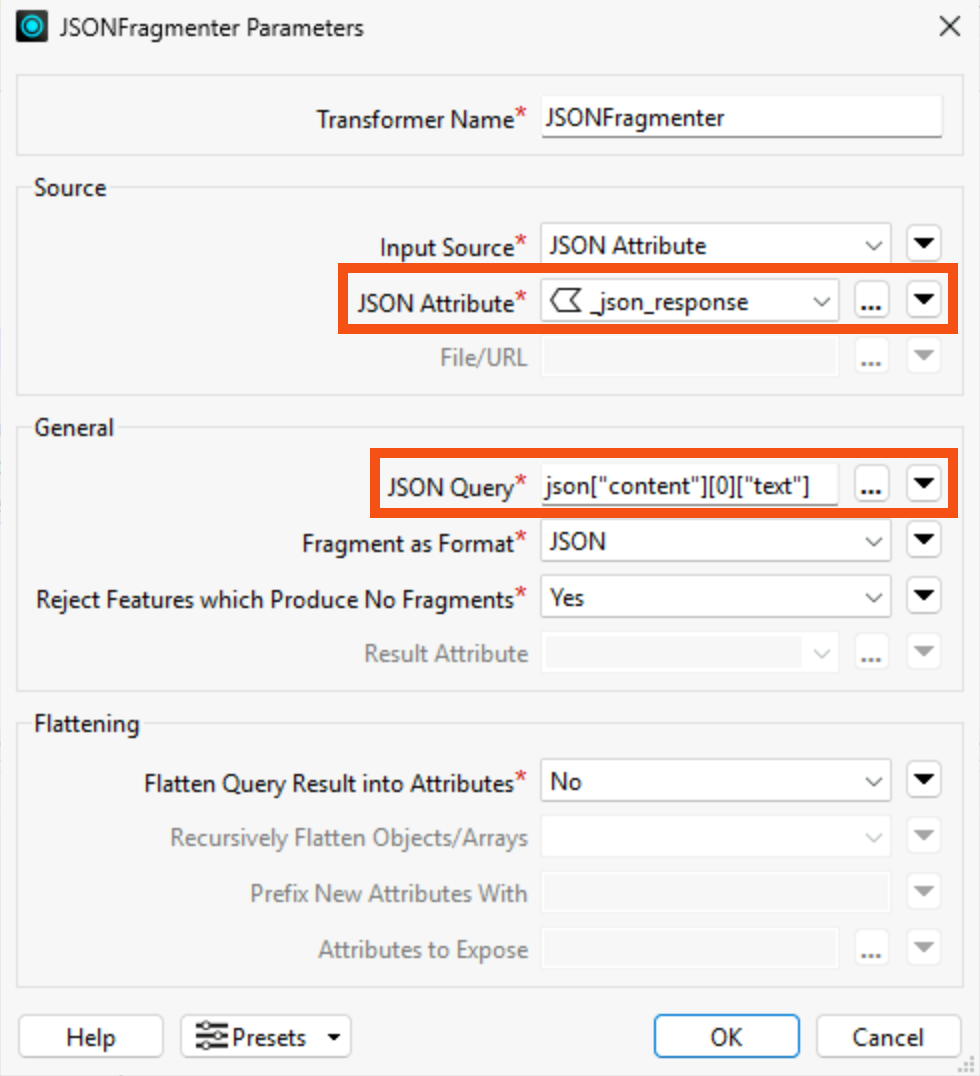
- Connect a JSONFragmenter to the Call Tool MCPCaller's Output port. Open its parameters.
- Set the JSON Attribute to _json_response.
- For the JSON Query, enter
json["content"][0]["text"].
- This won't parse everything into individual attributes, but it will give you a start, and you'll be able to see the response weather data as JSON easily.
- Click OK.
10) Run the Workspace
- Run the entire workspace. FME will prompt you for the user request to the MCP server.
- You can either leave the default value or provide a different query.
- If you choose to provide a different query, make sure it fits the context of the weather MCP server's tools.
- Inspect output caches throughout your workspace to see how FME handles the request, input, and resulting data through the two MCP calls and the AI connector. Specifically, look at the JSONFragmenter's cache and the _ json_response attribute that contains the weather MCP response information.
- To continue working with the data, you will need to do additional JSON extraction to get the weather information as FME attributes.
- Save your final workspace.
You've successfully connected to Frank's weather MCP server, listed the server's available MCP tools, and called tools, both statically and dynamically. Throughout this exercise, you used FME as an MCP client, connecting to the MCP server and calling tools and receiving MCP responses.
